Network
This page goes over some troubleshooting steps that should help with some of the more common problems that can occur with the network.
If there is no internet connection
First, verify that the internet connection is truly down, and not just the local network experiencing issues, or a single device experiencing issues.
The best course of action is to wait 10-15 minutes. If there's still an outage, it's likely on Cox's end, and there's not much that can be done to resolve it.
Connectivity to the internet can be checked on the Dream Machine Pro's built in display, or on it's web interface.
Since there's no internet connectivity, unifi.ui.com won't work, so access the interface at 192.168.1.1. Your browser will likely warn that there's a potential security risk - don't worry, it's safe, just press "Accept the risk and continue" or similar buttons depending on the browser to access.
To access the web interface via the Dream Machine's IP address (192.168.1.1), you need local credentials for one of it's accounts. Currently, only Alton has local credentials. Local credentials can be set from the Dream Machine Pro's admins page at unifi.ui.com
If a client device is unable to connect to WiFi
If the problems are limited to a single device, they are likely due to an issue with the device itself. Try restarting the device, restarting it's WiFi connection, or reinstalling the devices WiFi drivers.
Instructions for reinstalling drivers vary greatly across devices, and in some cases, like with Apple devices, reinstalling isn't possible
If the problems are present in multiple devices, the best course of action would be to restart parts or all of the network. Refer below for how to restart the network.
How to restart the modem
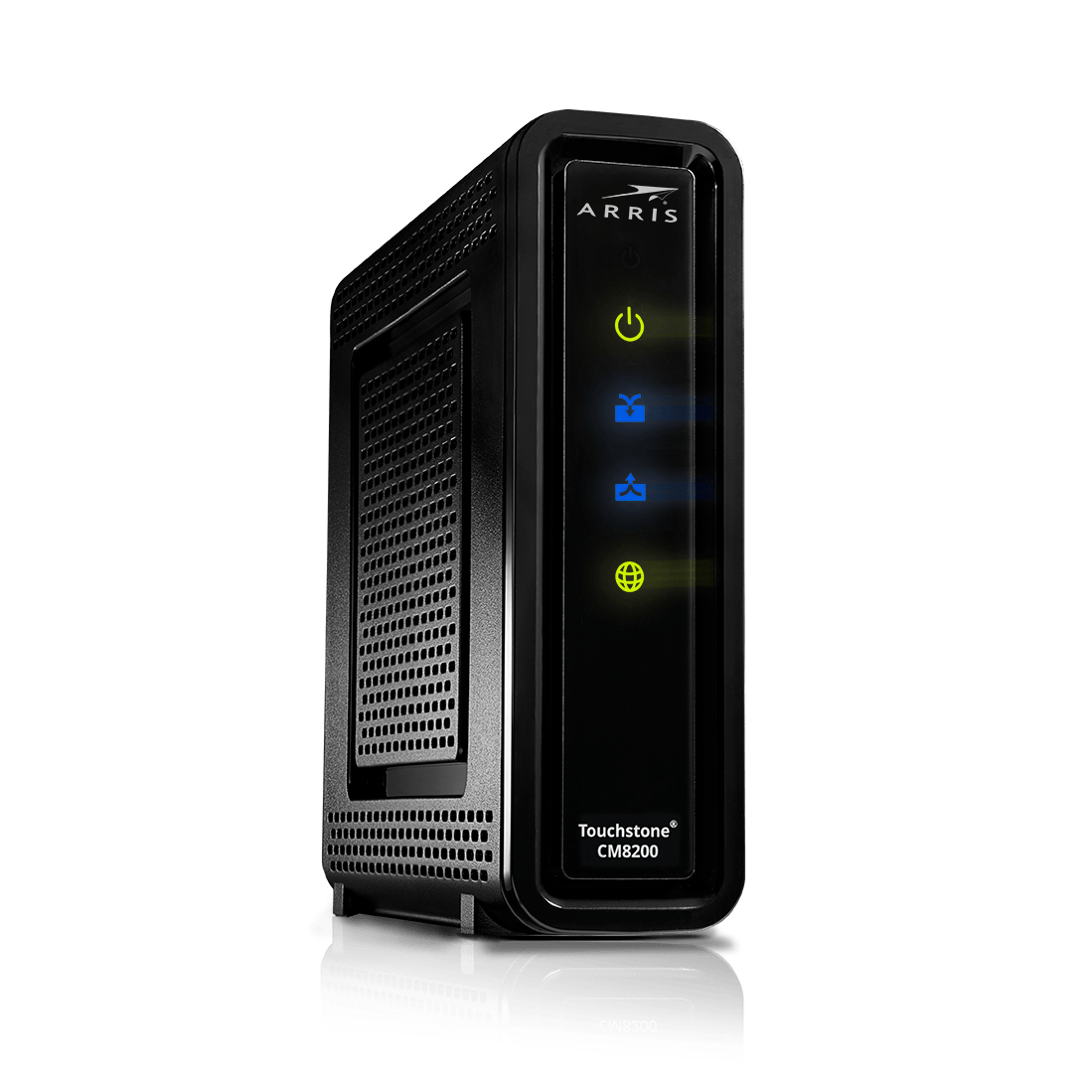
The modem occasionally stops working. No idea why, but it's not hard to fix!
It's located in the soundbooth tucked in underneath the Blackmagic camera on the tripod. Or to the right of the network equipment (hint: lots of blinky lights, fan noises, Ubiquiti equipment with screens), tucked in the corner of the counter/wall thing.
To restart the modem, unplug the power cable, then plug it back in. The modem takes several minutes to start, and you can tell that it's fully started when all 4 indicator lights on the front of the modem are solid.
How to restart the Dream Machine Pro
If the network is experiencing issues, restarting the Dream Machine is an option that could fix any problems, though it's unlikely to be the cause of any issues. Try other steps above first if something has gone wrong.
The Dream Machine is the main router / controller for the network. It handles the Unifi Talk phones, the Unifi Protect security cameras, and all of the access points, switches, and other network hardware. It's also the firewall for the network, protecting and regulating access to the internet as necessary to ensure any threats to the network are blocked.
To restart the Dream Machine, there are two options. It can be restarted from the web interface, or from the screen located on the unit.
Web interface
Go to unifi.ui.com, then click on the SABTS Dream Machine Pro. From there, go to console settings, and scroll to the bottom, where you will find buttons to Restart, Shut Down, and more.
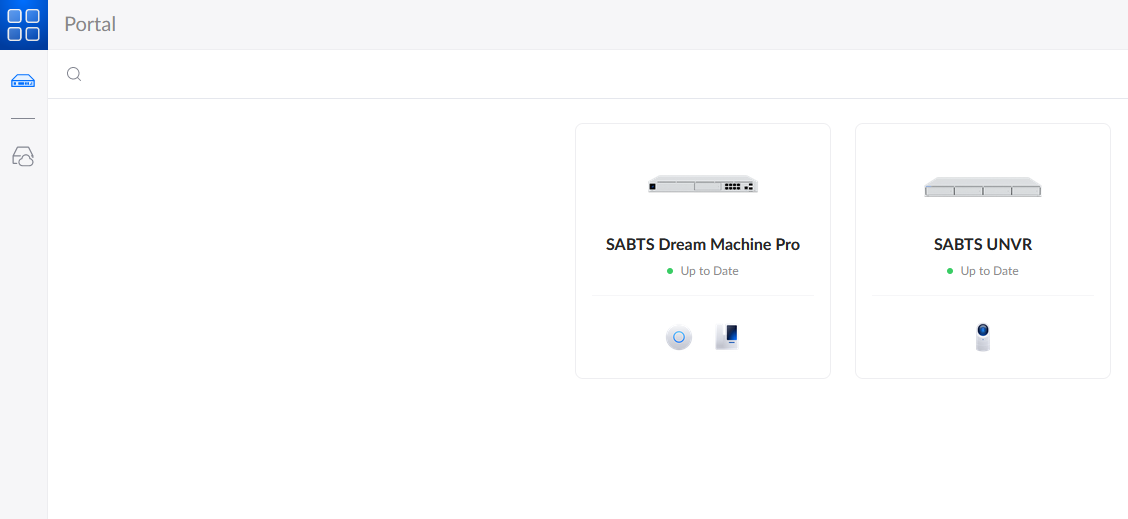
Shutting it down is an option, but that will take down the network until you can physically turn it back on, which requires unplugging it and replugging it, which will be somewhat challenging
One of the buttons factory resets the Dream Machine. Do not press that button.
In person / Physically
First, locate the Dream Machine Pro. It can be found in the sound booth in the network rack.

If its showing a screensaver, tap the screen to wake it up, then swipe left until you reach a settings button. Tap that, then swipe left until to the last screen with two buttons - shut down, and restart. Press restart, confirm if necessary, and then give it a few minutes. The screen will show when it's finished restarting.